How to Generate 1000 Images from CSV in 5 Minutes [2026 Tutorial]
![How to Generate 1000 Images from CSV in 5 Minutes [2026 Tutorial]](/_next/image?url=%2Fblog%2Fgetting-started%2Fcover.png&w=3840&q=75)
How to Generate 1000 Images from CSV in 5 Minutes [2026 Tutorial]
Introduction
Creating one image with custom text, logo, or name is easy. But creating 1,000 individually personalized images manually can take 10+ hours — laying out text, exporting, renaming, repeating. For small business owners, marketers, and event organizers, that’s lost time you can’t afford.
What if you could generate images from CSV data — names, photos, codes — in bulk, in just minutes? In this tutorial, you’ll learn how to bulk generate pictures from spreadsheet entries, turning your CSV into a ZIP of 1,000 ready-to-use images — in just about 5 minutes. Let’s go.
What You’ll Need
Before we begin, here’s what you’ll need to make this work:
- CSV file — a spreadsheet (Excel, Google Sheets, etc.) exported as
.csvthat contains all the variables (names, numbers, images, etc.) - Template image — a design file (PNG, PSD, PDF, etc.) with placeholders for where dynamic text or images will go
- Bulk image generator tool — a service or software that “merges” CSV data into the template. In this tutorial, I’ll use Batchr as the example tool.
You can use alternatives to Batchr, but the steps remain similar. The goal: take your CSV + your template, map fields, and generate images from CSV automatically.
Step-by-Step Tutorial
Step 1: Prepare Your CSV File
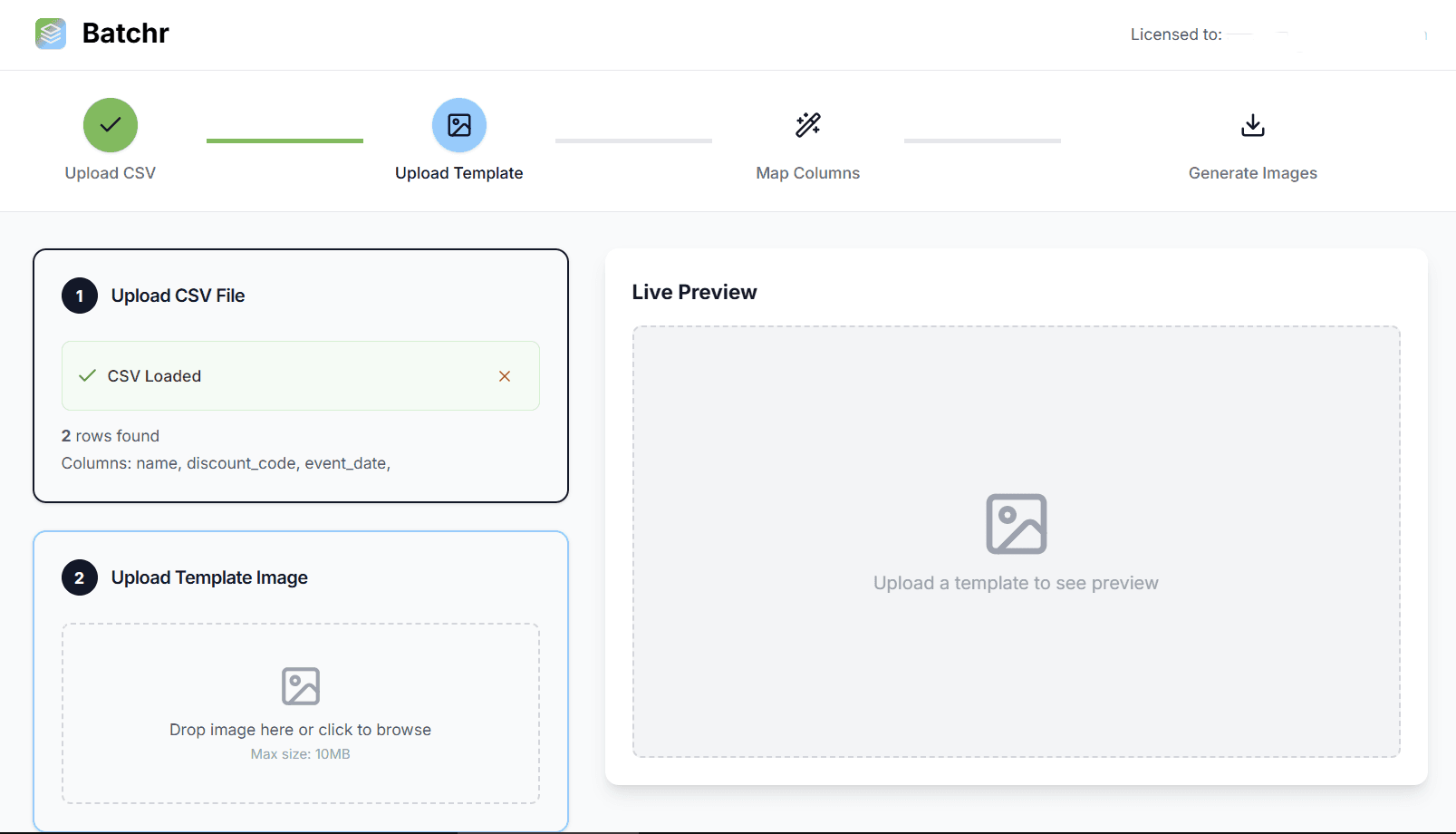 Uploading CSV step
Before uploading, your CSV needs clean formatting. Here’s how:
Format & Column Headers
- Use a spreadsheet tool (Excel, Google Sheets) and ensure the first row contains headers.
- Example headers:
name,discount_code,event_date - Each subsequent row is one record (one output image’s data).
Example Data
| name | discount_code | event_date |
|---|---|---|
| Alice Smith | ABC123 | 2025-11-20 |
| Bob Johnson | XYZ789 | 2025-11-21 |
Save it as data.csv. You will generate images from CSV using this file.
Step 2: Design Your Template Image
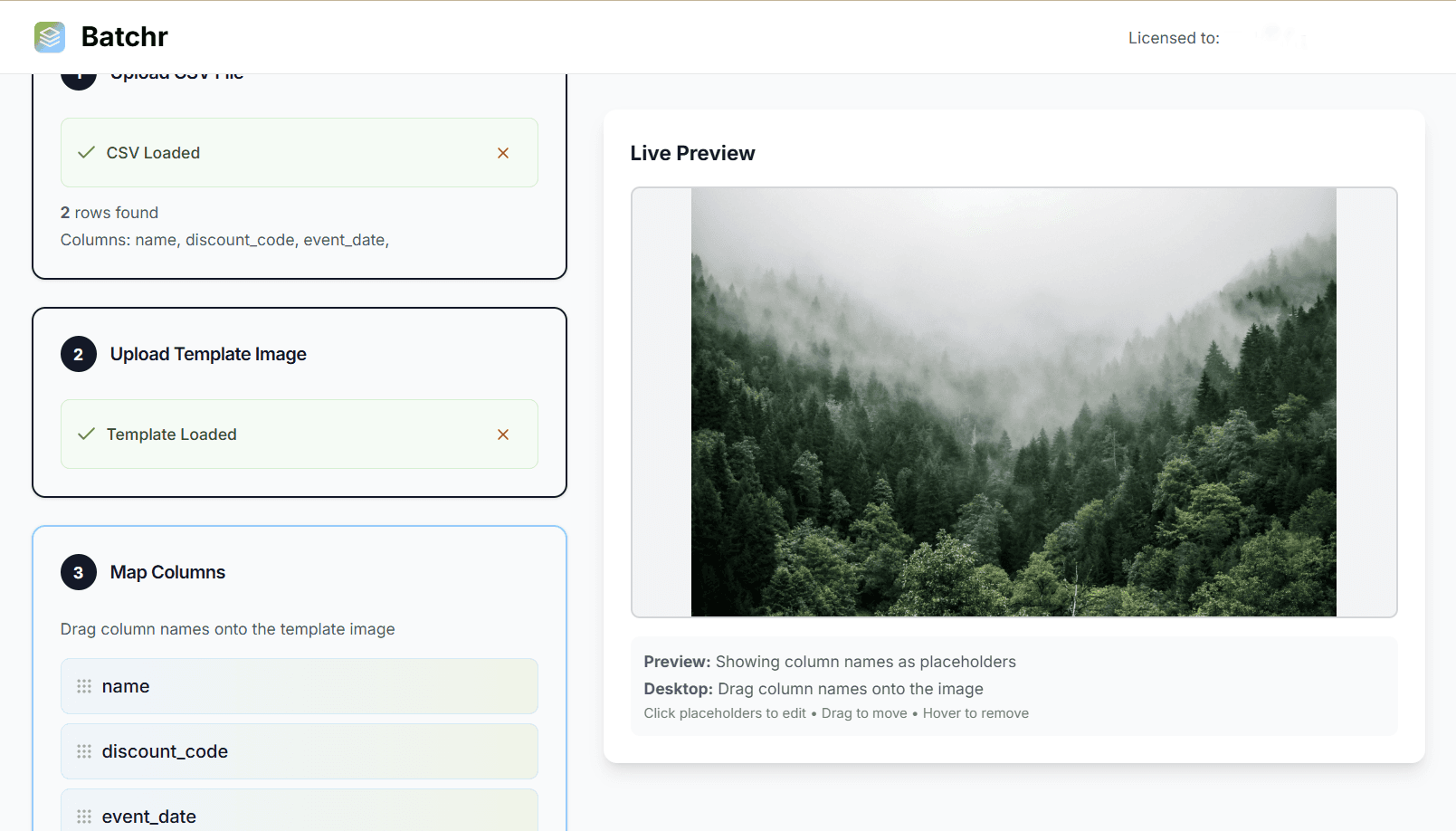 Uploading template image step
Next, build a template that will act as the base for all your images. Export a base background or design where dynamic text/images will be overlaid.
This template is what the tool will merge with your CSV. Thus you can generate images from CSV by combining your CSV and template.
Step 3: Map CSV Columns to Template Positions
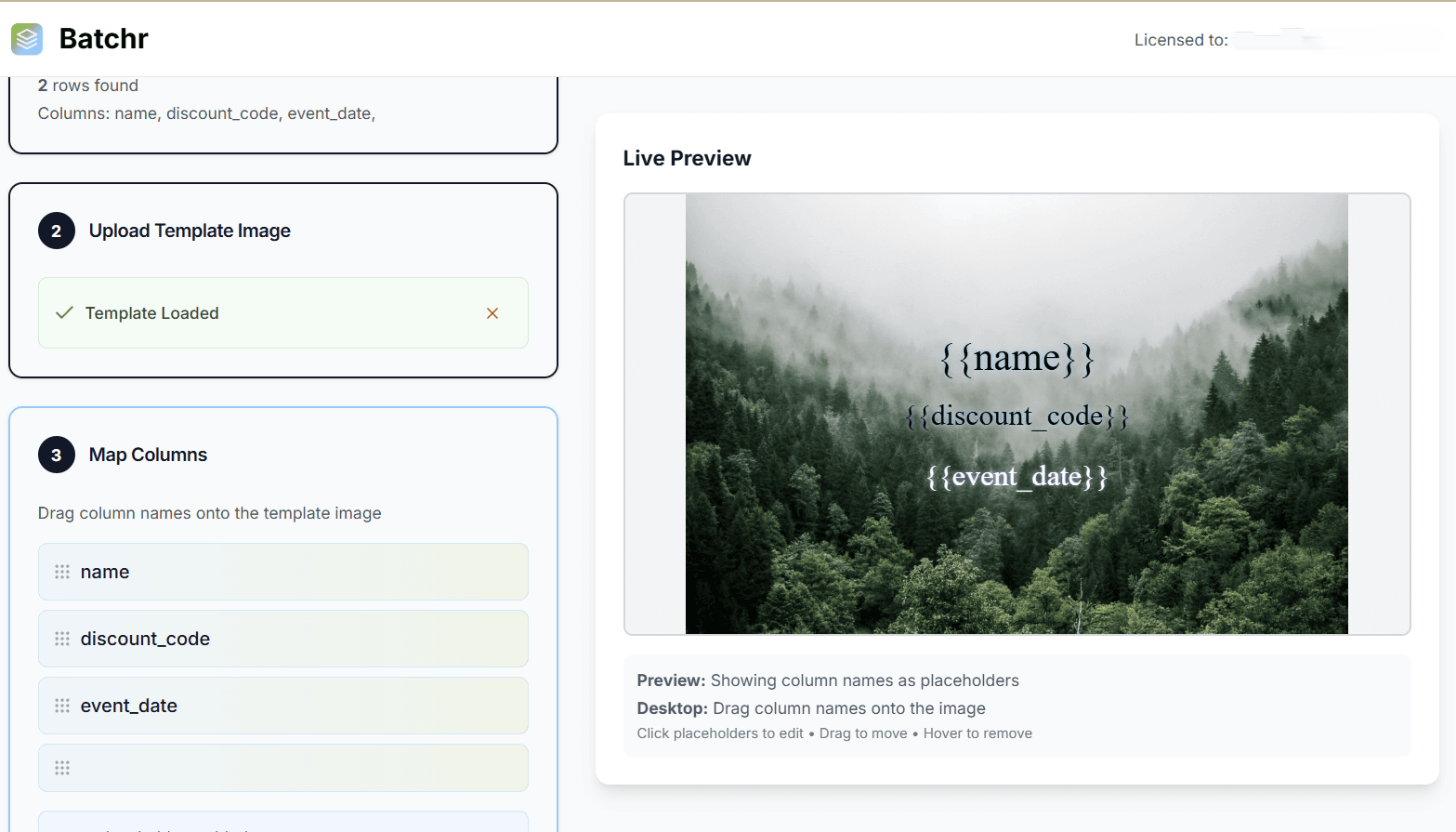 Mapping step
After uploading both template and CSV, you’ll map (or “bind”) each CSV column to a position or layer in the template.
Batchr will show recognized columns from CSV as placeholder chips. Drag and drop them to the template.
For each placeholder yoy can select the following options:
- Font Family
- Font Size
- Color
This mapping ensures when we hit “generate,” the tool takes each row of CSV, fills the template, and produces unique output. That is how you generate images from CSV in bulk.
 User can change placeholder options
Step 4: Generate & Download ZIP
Once mapping is set:
- Click Generate in Batchr.
- All rows will be processed — up to 1,000 rows, it usually takes 3–5 minutes.
- When done, download the ZIP file containing all generated images.
- Unzip locally — now you have 1,000 files.
You’ve just bulk generated pictures from spreadsheet data — no manual copy-paste effort.
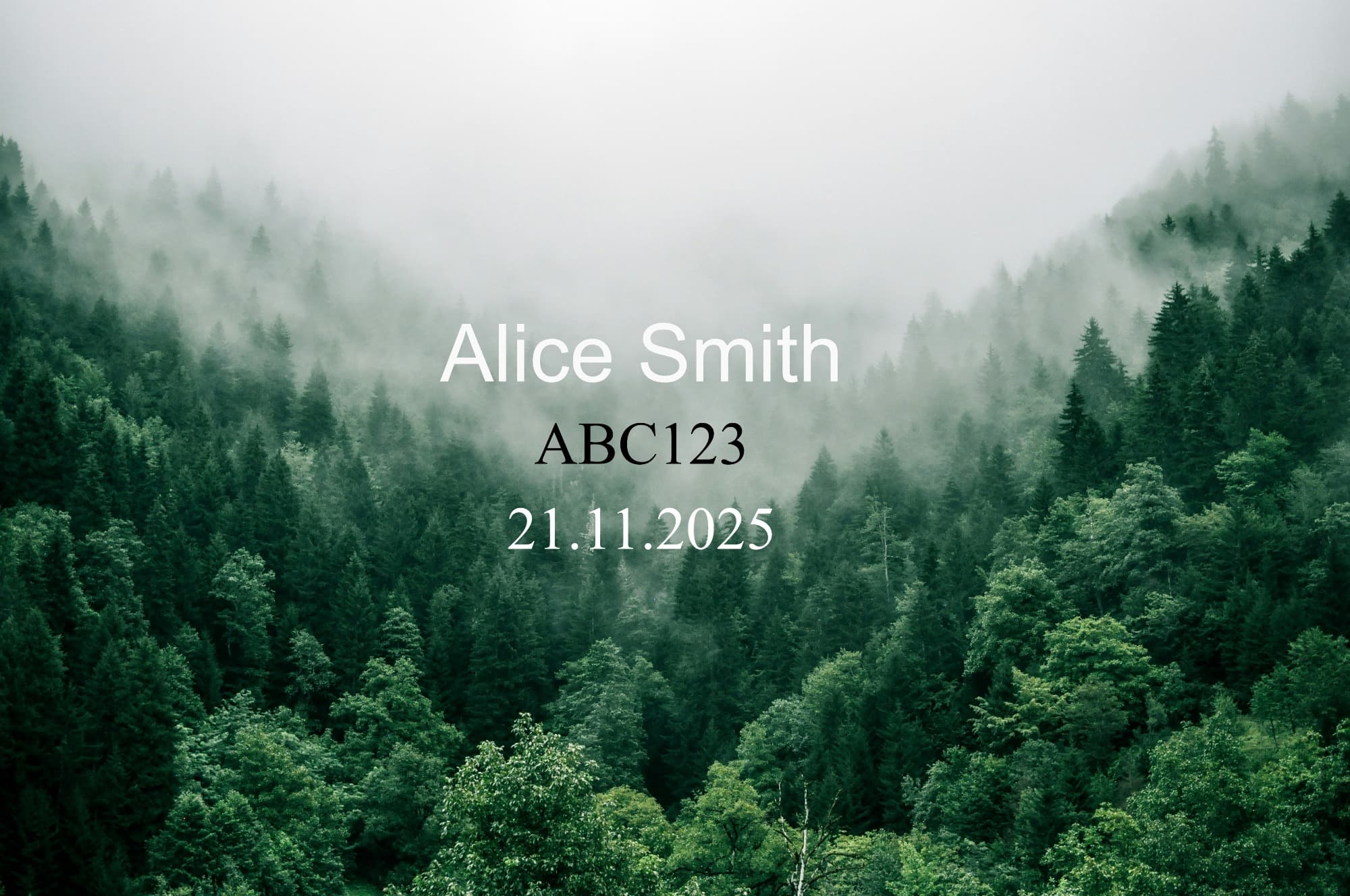 Generate step
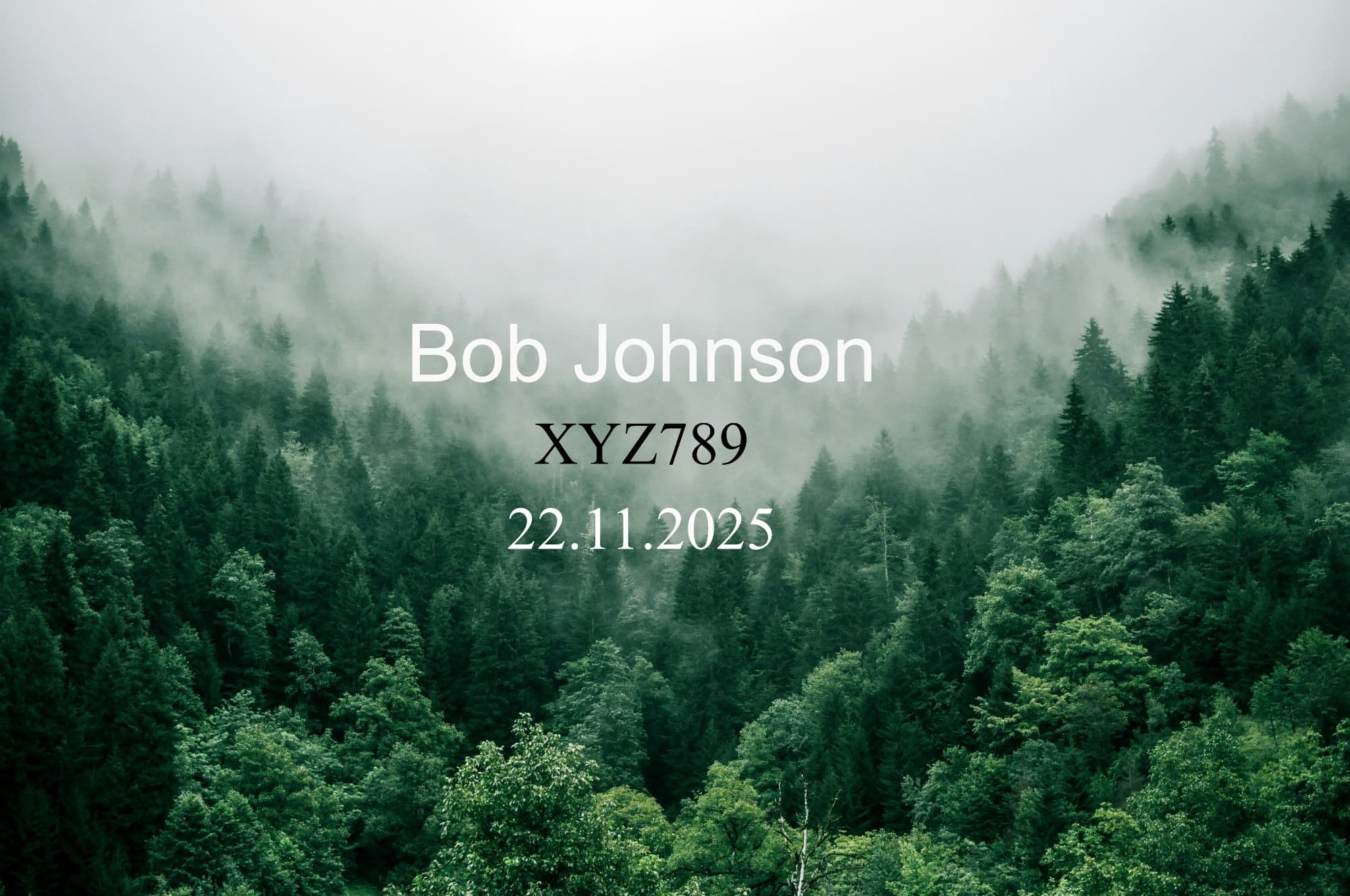 Generate step
Real-World Use Cases
Here are real examples where “generate images from CSV” saves hours:
1. Certificates & Diplomas
For courses, webinars, or events, you can make personalized certificates with each attendee's name, course name, date.
Upload CSV of participants → template certificate → generate in bulk. Learn more about certificate generation.
2. Social Media Posts
For campaigns, you can make hundreds of versions: "Happy Birthday, [Name]!", or promotional coupons with names.
CSV holds names and offers → template social card → bulk generate images from CSV. See our social media graphics guide.
3. Product Cards / Price Tags
You have a spreadsheet of products, prices, discounts, images. Use CSV + template to generate cards for online catalog uploads. Check out product label creation.
4. Event Badges or Name Tags
CSV holds attendee name, title, QR code URL, photo URL. Make 1,000 badges in minutes using the method above. Explore event badge generation.
5. Personalized Invitations or Promo Flyers
Merge guest list and template to output individual invitations or flyers tailored with names, dates. View our personalized invitations use case.
In all these cases, “generate images from CSV” is the core technique.
Tips for Best Results
Here are tips to make your output look clean and professional:
- High resolution — aim for 300 DPI or a large pixel size (e.g. 1080×1080, 1920×1080) so final images don’t look pixelated.
- Font choices — use readable fonts (sans-serif or clear serif), avoid decorative scripts for variable text.
- Text length limits — limit how many characters names or codes can take so they don’t overflow.
- Color contrast — ensure text color contrasts background, especially if background is busy.
- Test with sample rows — preview first 5–10 rows to catch alignment issues before generating all 1,000.
- Batch in parts — if 1,000 rows is too large, try 200 first to verify.
With these tips, your images will look sharp and consistent.
Manual vs Automated: Comparison Table
| Method | Time for 1,000 Images | Cost (Labor) | Scalability | Error Rate / Consistency |
|---|---|---|---|---|
| Manual design (Photoshop etc.) | 10+ hours | High (designer hours) | Low - impractical | High chance of typos or misalignment |
| Canva manual clones | 4–8 hours | Moderate | Low-to-medium | Some inconsistency between duplicates |
| Automated (CSV + template tool) | ~5 minutes | Low - software cost only | High - can do 10,000+ | Very consistent; errors mainly from bad CSV |
This table shows why using automation matters: you trade hours of manual work for minutes of setup.
Alternative Methods
There are other ways to produce many images — but each has limitations.
Manual Photoshop / GIMP
You could build an action script or use scripting to import CSV, but it takes technical skill and is slow.
Also, export and naming require manual work.
Canva Bulk Create (or Canva “Apps: Bulk Create”)
Canva has a “Bulk Create” feature which lets you import CSV, but with limitations:
- Limited dynamic image placement (only text fields)
- Only supports certain templates
- Not ideal for very large batches (1,000+)
- Less control over image placeholders
Thus, "bulk create images from spreadsheet" in Canva works for simple use, but less robust than a dedicated tool like Batchr.
Code Scripts (Python, NodeJS)
If you are technical, you can script your own solution: read CSV, use PIL (Python Imaging Library) or ImageMagick, overlay text/images, generate output.
This is powerful but requires coding skills, error handling, server runtime, etc.
Other Tools
Other online merger tools exist (e.g. “Merge Image”, “ImageChimp”, “Bannerbear”, “Photoslurp”) — but the core steps remain the same: upload CSV + template → map fields → generate.
FAQ (Frequently Asked Questions)
Q1: Can I generate images from CSV with my own hosted server or tool?
A: Yes — you could build a script (Python, Node.js, PHP) that reads CSV rows and renders images with overlays. But it requires dev skills. For non-technical users, using a tool like Batchr is faster and less error-prone.
Q2: What image formats are supported (PNG, JPG)?
A: Most bulk image generator tools accept PNG, JPG templates.
Q4: What is the maximum number of images I can generate from CSV at once?
A: Depends on the tool. Batchr supports fairly large batches (up to 1000). If a limit is reached, split CSV into chunks (e.g. 500 each). Always test a small batch first.
Summary
Manually creating 1,000 images is a drain on time. By combining a well-structured CSV, a clean template, and a bulk image generator like Batchr, you can generate images from CSV in just minutes. You’ll free your time for marketing, strategy, or business growth.
Want to try it now? Head to Batchr, upload your CSV + design, map fields, and in 5 minutes have a ZIP of 1,000 personalized images. Start your free trial today and see how fast "bulk generate pictures from spreadsheet" becomes your new normal.